

Purchase Orders & Sales Orders with Items
In the Debit/Credit article, we covered posting costs and revenues using G/L accounts directly. In real business, however, most transactions involve items — products you buy from vendors and sell to customers. In Business Central, items follow a separate posting flow that also updates your inventory, not just the General Ledger.
In this article we will walk through the full flow for both a Purchase Order and a Sales Order with items — from setup to posted entries.
What is an Item in Business Central?
An item in BC is a product or service you trade. Items are stored in the Item List and each item card holds:
• description, unit of measure, and base unit price
• the Inventory Posting Group — which connects the item to G/L accounts for inventory
• the Gen. Prod. Posting Group — used together with the vendor/customer group to find purchase and sales accounts
• the costing method — how BC calculates inventory value (FIFO, Average, Standard, LIFO, or Specific)

The Inventory Posting Group and Gen. Prod. Posting Group are the most important item settings for beginners to understand. They drive which G/L accounts are used whenever you post a transaction involving this item.

Required setup before posting
1. Inventory Posting Setup
This table maps a combination of Location Code + Inventory Posting Group to specific G/L accounts. The key accounts are:
Account field | Purpose |
Inventory Account | Balance sheet account holding the current value of your stock |
COGS Account | Cost of Goods Sold — the cost that hits the P&L when you ship to a customer |
Inventory Adjmt. Account | Used for value adjustments such as revaluation or item charge posting |
NOTE: Navigate to: Inventory Posting Setup to verify these accounts exist for your location and item posting group before creating any orders. |
2. General Posting Setup
BC also needs a Gen. Bus. Posting Group (from the vendor or customer card) combined with a Gen. Prod. Posting Group (from the item card) to look up the correct accounts in the General Posting Setup matrix. The key accounts for item postings are:
Field in General Posting Setup | What it posts to |
Purch. Account | Purchase account — receives the cost when you post a purchase invoice |
Sales Account | Revenue account — receives the income when you post a sales invoice |
Purch. Credit Memo Account | Used when posting a purchase credit memo (correction) |
Sales Credit Memo Account | Used when posting a sales credit memo (correction) |

NOTE: Missing rows in Inventory Posting Setup or General Posting Setup are the most common reason BC throws an error when you try to post an item transaction. Always set these up first. |
Purchase Order — step by step
A Purchase Order has two posting events that can be done separately or together:
1. Receive — records the physical arrival of goods into inventory
2. Invoice — posts the vendor's invoice to the General Ledger
Step 1: Create the Purchase Order
Go to Purchase Orders → New. On the header, fill in:
• Vendor No. — the vendor card must already have a Gen. Bus. Posting Group and Vendor Posting Group
• Posting Date — the date the transaction posts to the G/L
On the order lines, fill in:
Field | What to enter |
Type | Item |
No. | Select the item from the Item List |
Quantity | Number of units you are purchasing |
Direct Unit Cost Excl. VAT | Net purchase price per unit from the vendor's document |
Step 2: Post the Receipt
Use Post → Receive to record the physical arrival. This step creates:
• an Item Ledger Entry — Entry Type = Purchase, with a positive quantity (stock increases)
• a Value Entry — records the cost amount
• no General Ledger entries yet — the inventory account is not updated at receipt
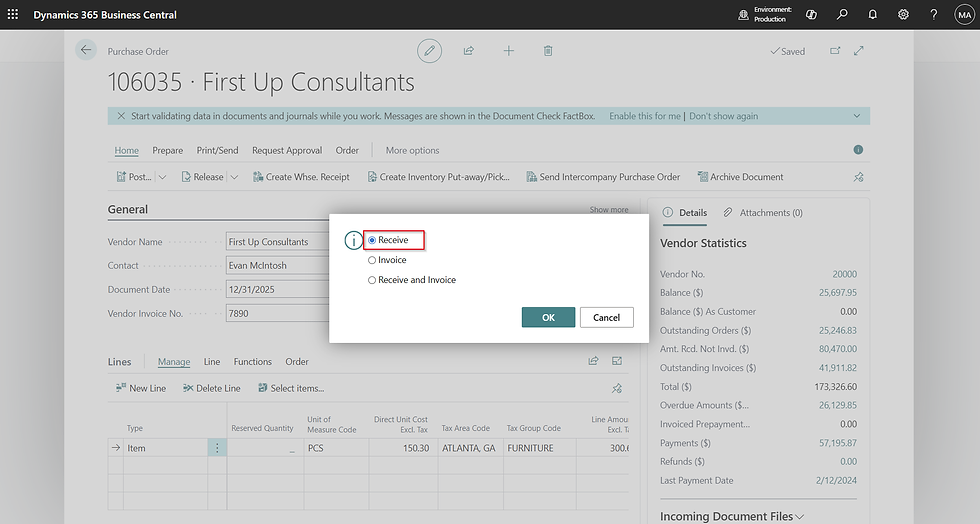
NOTE: After posting, you will see the Qty. Received field updated on the order line. The item is now in inventory in BC, but no financial posting has been made yet. The vendor payable does not exist until the invoice step. |
Step 3: Post the Invoice
When the vendor's invoice arrives, open the Purchase Order and use Post → Invoice. This creates the following G/L entries:
Account | Debit | Credit |
Inventory Account (Balance Sheet) | 100 |
|
Vendor Payables Account (Balance Sheet) |
| 100 |
BC also creates a Vendor Ledger Entry — this is the open payable that you will later apply a payment against.
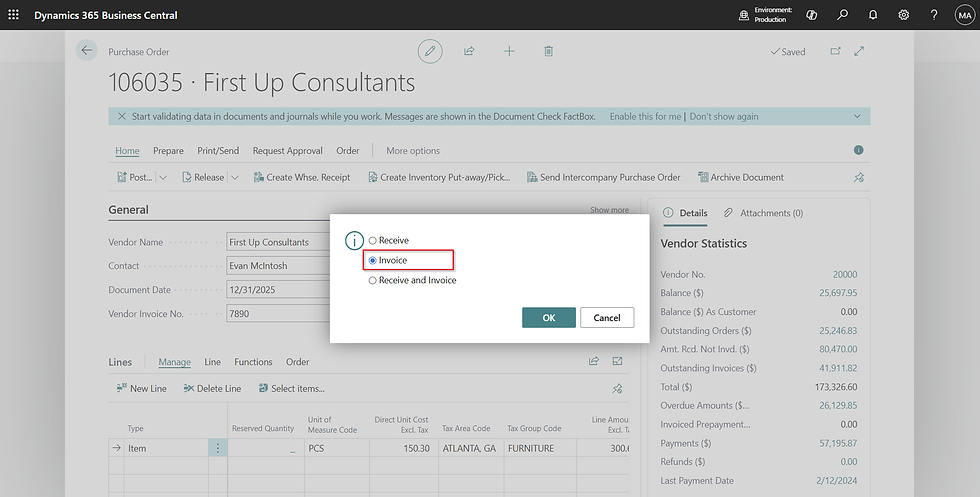
NOTE: Compare this with a direct G/L purchase from the previous article: the difference is that the debit goes to the Inventory account on the balance sheet, not to a cost account. The cost (COGS) only hits the P&L when you sell and ship the item. |
Sales Order — step by step
A Sales Order mirrors the Purchase Order with two posting events:
3. Ship — records the physical departure of goods from inventory
4. Invoice — posts the revenue and COGS to the General Ledger
Step 1: Create the Sales Order
Go to Sales Orders → New. On the header:
• Customer No. — the customer card must have a Gen. Bus. Posting Group and Customer Posting Group
• Posting Date
On the order lines:
Field | What to enter |
Type | Item |
No. | Select the item from the Item List |
Quantity | Number of units to sell |
Unit Price Excl. VAT | Selling price per unit |
Step 2: Post the Shipment
Use Post → Ship to record the goods leaving your warehouse:
• Item Ledger Entry — Entry Type = Sale, negative quantity (stock decreases)
• Value Entry — records the cost of goods shipped using your costing method
• no General Ledger entries yet — revenue is not recognized until invoicing

Step 3: Post the Invoice
Use Post → Invoice to post the financial side. This creates four G/L entries:
Account | Debit | Credit |
Customer Receivables (Balance Sheet) | 150 |
|
Sales Revenue Account (P&L) |
| 150 |
COGS Account (P&L) | 100 |
|
Inventory Account (Balance Sheet) |
| 100 |

Notice that the sales invoice creates four G/L entries, not two. BC automatically posts both the revenue side (selling price) and the cost side (COGS) in the same action. This is the fundamental difference between selling an item and posting a G/L revenue account directly.

BC also creates a Customer Ledger Entry — the open receivable you will later apply a payment or bank transaction against.
Posting Receive+Invoice or Ship+Invoice together
If you do not need to separate the physical and financial steps, you can use Post → Receive and Invoice on a Purchase Order, or Post → Ship and Invoice on a Sales Order. BC processes both steps in a single action.
This is the most common choice for smaller businesses that do not use warehouse management.
What to verify after posting
After posting, use the Navigate action on the Posted Invoice to check:
• Confirm the quantity change and entry type: Item Ledger Entries
• Confirm the cost amount and costing method applied: Value Entries
• Confirm the accounts used match your Inventory Posting Setup and General Posting Setup: G/L Entries
Common setup errors for beginners
Error message (simplified) | Likely cause |
Inventory posting setup not found | Missing row in Inventory Posting Setup for this Location + Inventory Posting Group combination |
General posting setup does not exist | Missing row in General Posting Setup for this Gen. Bus. + Gen. Prod. combination |
Item has no Inventory Posting Group | The item card has no Inventory Posting Group assigned |
Quantity on hand would be negative | BC is configured to block negative inventory — check Inventory Setup or item availability |
Summary table
Posting step | Item Ledger Entry | Value Entry | G/L Entry |
PO — Receive | Yes (+qty) | Yes (cost) | No |
PO — Invoice | No | Yes (finalized) | Yes |
SO — Ship | Yes (−qty) | Yes (COGS) | No |
SO — Invoice | No | No | Yes (revenue + COGS) |
In the next article, we will cover VAT posting — how BC calculates and records tax entries on purchase and sales documents.
Thanks for reading!


Komentarze