

Bank Account Postings and Bank Reconciliation in Business Central
Bank reconciliation is one of the most routine tasks a BC consultant will configure for every client — and one of the first places errors surface in a live system. Getting it right requires understanding two things: how BC posts bank transactions to the General Ledger, and how the reconciliation process matches those postings against the real bank statement.
In this article we will cover bank account setup, how payments post, the Bank Ledger Entries that result, and the full step-by-step reconciliation process. We will focus on manual reconciliation — automatic bank feed import will be covered in a future article.
Part 1 — Bank Account setup
The Bank Account card
Navigate to: Bank Accounts. Each physical bank account your company holds needs its own card in BC. The key fields a beginner must know:
Field | What it controls |
No. | The internal BC identifier for this bank account |
Bank Account Posting Group | The single most important field — links this bank account to a specific G/L account |
Currency Code | Leave blank for local currency (LCY). Set for foreign currency bank accounts |
Last Statement No. | Tracks which bank statement was last reconciled — BC auto-increments this each time you post a reconciliation |
Last Statement Date | The date of the last completed reconciliation — helps you know where you left off |
Balance (LCY) | The current balance in BC based on posted transactions — not yet reconciled against the bank statement |

Bank Account Posting Group
Navigate to: Bank Account Posting Groups. This setup table has one job: it maps a bank account to a single G/L account on your Chart of Accounts. Every transaction posted through a bank account will hit that G/L account.
Field | Purpose |
Code | A short identifier — e.g. MAIN, SAVINGS, USD-BANK |
G/L Bank Account No. | The balance sheet G/L account that will hold the balance for this bank account |

NOTE: One bank account in BC = one G/L account. If your client has three physical bank accounts, you need three Bank Account Posting Groups and three separate G/L accounts on the Chart of Accounts. Mixing transactions from multiple physical accounts into one G/L account makes reconciliation difficult. |
Part 2 — Two approaches to payments and reconciliation
BC gives you two distinct workflows for handling bank payments and reconciliation. Understanding the difference upfront will save a lot of confusion:
| Approach A: Payment Journal + Bank Reconciliation | Approach B: Payment Reconciliation Journal |
What it is | Two separate steps: post payments first, then reconcile separately | One combined journal: import bank statement, match, and post all in one step |
Best for | Companies that want to record payments in BC before receiving the bank statement (e.g. outgoing transfers, cheques) | Companies that prefer to work directly from the bank statement and post everything from it |
Payment Journal needed? | Yes — payments are posted in advance | No — the journal creates payment entries and posts them at the same time as reconciliation |
Separate reconciliation step? | Yes — Bank Account Reconciliation is a separate process | No — matching and posting happen in the same journal |
Result | Bank Ledger Entries created when payment posted; matched and closed during reconciliation | Bank Ledger Entries created and immediately closed in a single post action |
TIP: There is no right or wrong choice — both approaches produce the same final result in the G/L. The choice depends on your client's workflow. Many companies use Approach A for outgoing vendor payments (they know the payment before the bank confirms it) and Approach B for incoming customer payments (they see these on the bank statement first). |
Part 3 — How bank transactions post in BC
Before looking at the two approaches in detail, it helps to understand what BC creates whenever a bank transaction is posted — regardless of which approach you use.
Example 1 — Vendor payment
Scenario: paying a vendor invoice of 123 (net 100 + VAT 23).
Account | Debit | Credit |
Vendor Payables Account (Balance Sheet) | 123 |
|
Bank G/L Account (Balance Sheet) |
| 123 |
BC also creates:
• a Vendor Ledger Entry marked as Closed = Yes — the invoice is applied and paid
• a Bank Ledger Entry on the bank account — recording this outgoing transaction

Example 2 — Customer receipt
Scenario: a customer pays their invoice of 184.50 (net 150 + VAT 34.50).
Account | Debit | Credit |
Bank G/L Account (Balance Sheet) | 184.50 |
|
Customer Receivables Account (Balance Sheet) |
| 184.50 |
BC also creates:
• a Customer Ledger Entry marked as Closed = Yes — the invoice is applied
• a Bank Ledger Entry on the bank account — recording this incoming transaction
NOTE: Every time a bank transaction is posted in BC — regardless of which approach you use — a Bank Ledger Entry is created. This is the complete list of all transactions BC knows about for that account. Its Open field shows whether it has been matched to a bank statement line yet. |
Part 4 — Bank Ledger Entries
Navigate to: Bank Account Card → Bank Account Ledger Entries. This list shows every transaction ever posted through this bank account.
Field | What it means |
Posting Date | The date the transaction was posted in BC |
Document Type | Payment, Refund, or blank for direct G/L entries |
Amount | Positive = money coming IN to the bank; Negative = money going OUT |
Open | Yes = not yet matched in a reconciliation; No = matched and closed |
Statement No. | Which reconciliation statement closed this entry (blank if still open) |

NOTE: 'Open = Yes' on a Bank Ledger Entry does NOT mean the vendor or customer invoice is unpaid. It means this bank transaction has not yet been matched to a bank statement line. The payment is fully posted — the invoice is closed. The Open flag here is only about the reconciliation step. |
Part 5 — Approach A: Payment Journal + Bank Reconciliation
In this approach, payments are posted in BC first — independently of the bank statement. The reconciliation is a separate step that happens later when you receive the statement.
Step 1: Post payments in the Payment Journal
Navigate to: Payment Journal. Create journal lines for each payment:
• set Account Type to Vendor (or Customer for receipts) and select the account
• set Bal. Account Type to Bank Account and select the bank account
• enter the payment amount and apply it to the open invoice using the Applies-to Doc. No. field
• post the journal — this creates the G/L entries and Bank Ledger Entries shown in Part 3
TIP: Use the Suggest Vendor Payments action in the Payment Journal to automatically populate lines for all open vendor invoices that are due — a major time saver for companies with many vendors.  |
Step 2: Create a Bank Account Reconciliation
When the bank statement arrives, navigate to: Bank Accounts → select account → Bank Account Reconciliations → New. Fill in the header:
Field | What to enter |
Bank Account No. | The bank account you are reconciling |
Statement No. | BC auto-fills as Last Statement No. + 1 — do not change |
Statement Date | The end date shown on your physical bank statement |
Statement Ending Balance | The closing balance from your bank statement — this is the target BC must reach |

Step 3: Populate and match lines
Use Suggest Lines to pull all open Bank Ledger Entries into the bottom section. The top section contains your bank statement lines (entered manually or imported from a file).

Three matching methods:
Method | When to use it |
Match Automatically | BC matches by amount, date, and document number. Run this first — it handles most lines. |
Match Manually | Select one statement line + one ledger entry, click Match. Use when dates or references differ. |
Match on Amount | One statement line covers multiple ledger entries. Select the line, tick multiple entries, click Match. |

For statement lines with no matching Bank Ledger Entry (bank charges, interest, direct debits), use Transfer to General Journal to create and post a missing entry directly from the reconciliation screen.

Step 4: Verify and post
Check the three balance fields before posting:
Field | What it shows |
Balance Last Statement | Ending balance from the previous posted reconciliation — filled automatically |
Statement Ending Balance | The closing balance you entered from the bank statement |
Total Difference | Must equal ZERO before posting. Any non-zero value means unmatched lines remain. |
When Total Difference = 0, click Post. BC marks all matched Bank Ledger Entries as Open = No and creates a permanent Posted Bank Reconciliation record.
NOTE: A posted Bank Reconciliation cannot be edited. If you discover an error after posting, use the Undo action on the Posted Bank Reconciliation to reverse it and re-open all matched entries. |
Part 6 — Approach B: Payment Reconciliation Journal
The Payment Reconciliation Journal is a single journal that combines payment posting and bank reconciliation into one step. Instead of posting payments first and reconciling later, you import or enter the bank statement lines directly into this journal, let BC match them to open vendor and customer ledger entries, and then post — all at once.
The key difference from Approach A
In Approach A, payments are posted before the bank statement arrives. In Approach B, the bank statement drives everything — no separate Payment Journal is used.
The workflow is:
1. Import or manually enter bank statement lines into the Payment Reconciliation Journal
2. BC automatically tries to match each line to an open Vendor or Customer Ledger Entry
3. Review and correct any matches BC could not make automatically
4. Post the journal — BC simultaneously posts the payments, closes the ledger entries, and reconciles the bank account
Step 1: Open a new Payment Reconciliation Journal
Navigate to: Payment Reconciliation Journals → New (or search in Tell Me). Select the Bank Account No. BC creates a new journal linked to that bank account.

Step 2: Import or enter bank statement lines
Two ways to populate the journal lines:
• use the Import Bank Statement action to load a file (OFX, CSV, or bank-specific format) directly into the journal — each line from the bank file becomes one journal line: Import Bank Statement
• type each bank statement line directly into the journal — useful when no file import is available: Enter manually
Each journal line represents one real bank transaction and shows:
Field | What it contains |
Transaction Date | The date on the bank statement |
Description | The bank's transaction description — used by BC for automatic matching |
Statement Amount | The amount from the bank statement (positive = in, negative = out) |
Applied-to Entry No. | Filled by BC when a match is found — the Vendor or Customer Ledger Entry this line will close |
Match Confidence | High / Medium / Low — BC's confidence in the automatic match |
Account Type / Account No. | The vendor or customer BC matched this transaction to |

Step 3: Review automatic matches
After importing, BC runs its matching engine automatically. Lines where BC found a confident match show Match Confidence = High and are pre-filled with the vendor or customer account. Review these, then handle the remaining unmatched lines:
• BC could not find an open entry — select the Account Type and Account No. manually, or use the Apply Manually action to find and select the open invoice: Lines with no match
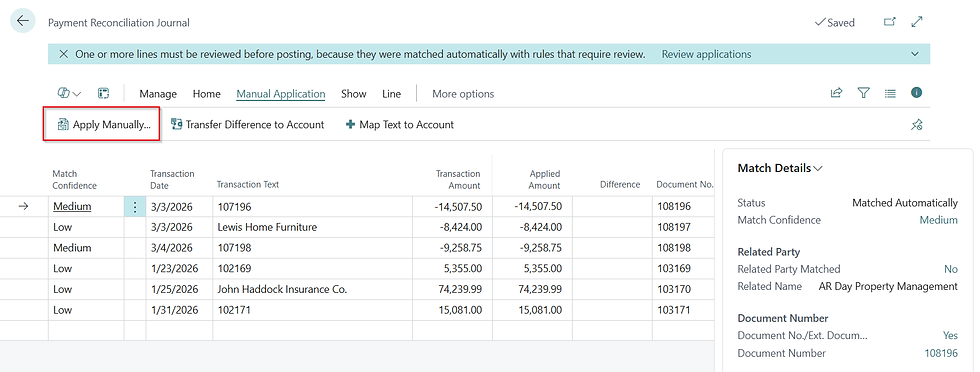
• set Account Type = G/L Account and select the appropriate expense account — these are posted directly to the G/L, not applied to a vendor/customer entry: Bank charges and fees

• leave Account Type blank — BC will not post these lines and they will remain as outstanding: Lines you want to skip this period
TIP: Use the Text-to-Account Mapping feature to teach BC how to handle recurring bank lines automatically. For example, map the text 'BANK SERVICE CHARGE' to always post to your bank charges G/L account. Once set up, BC handles these lines without manual intervention every month.  |
Step 4: Post the journal
When all lines are matched or mapped, click Post Payments and Reconcile Bank Account. In a single action, BC:
5. Posts a payment entry for each matched journal line — creating G/L entries and closing the Vendor or Customer Ledger Entry
6. Creates Bank Ledger Entries for each line
7. Immediately marks those Bank Ledger Entries as Open = No (matched to the bank statement)
8. Creates a Posted Bank Reconciliation record stamped with the Statement No.
Alternatively, if you want to post the payments but finish the reconciliation review later, use Post Payments — this posts the G/L and ledger entries without closing the bank reconciliation, which you can then complete in a standard Bank Account Reconciliation.

NOTE: The Statement Ending Balance field in the Payment Reconciliation Journal header must match your bank statement's closing balance before you can post the full reconciliation. If it does not match, lines are missing or an amount is wrong. |
Part 7 — Outstanding transactions
In both approaches, some Bank Ledger Entries will remain Open = Yes after reconciliation. These are outstanding transactions — amounts posted in BC that have not yet appeared on a bank statement.
Common examples:
• a payment posted in the Payment Journal that the bank has not yet processed
• a cheque issued in BC that has not yet been cashed by the vendor
• a customer payment received on the last day of the period that only appears on next month's statement
NOTE: The sum of outstanding transactions explains the difference between your G/L bank account balance and the closing balance on your bank statement. This is completely normal — it is not an error. Use the Outstanding Bank Transactions report on the Bank Account card to see this list at any time. |
Part 8 — Common mistakes for beginners
Mistake or symptom | Cause and fix |
Approach A: Cannot post — Total Difference is not zero | Unmatched lines remain. Either match them or post missing entries via Transfer to General Journal. |
Approach A: Bank Ledger Entry is Open but payment was made | Payment is posted but not yet matched in reconciliation — this is correct. It will appear in the next reconciliation. |
Approach B: Lines imported but no automatic matches | BC could not match — check that vendor/customer names or amounts on the bank file correspond to open entries. Use Apply Manually. |
Approach B: Same bank file imported twice | Duplicate statement lines in the journal. Delete the duplicates before posting. |
Either approach: Statement Ending Balance does not match bank statement | Wrong balance entered. Re-enter the exact closing balance from the physical bank statement. |
Either approach: G/L bank account balance differs from bank statement | Normal — outstanding transactions account for the difference. Run Outstanding Bank Transactions report to verify. |
Either approach: Posted reconciliation needs correction | Use the Undo action on the Posted Bank Reconciliation. You cannot edit a posted reconciliation directly. |
Suggest Lines in Approach A returns nothing | All Bank Ledger Entries are already closed, or the Statement Date is earlier than the open entries' posting dates. |
Summary
Here are both approaches at a glance:
Stage | Approach A: Payment Journal + Bank Reconciliation | Approach B: Payment Reconciliation Journal |
Step 1 | Post payments in Payment Journal → G/L entries + Bank Ledger Entries created (Open = Yes) | Import bank statement lines into Payment Reconciliation Journal |
Step 2 | Receive bank statement; open Bank Account Reconciliation; run Suggest Lines | BC auto-matches lines to open Vendor/Customer Ledger Entries |
Step 3 | Match statement lines to Bank Ledger Entries; handle unmatched via Transfer to General Journal | Review matches; handle unmatched lines manually or map to G/L accounts |
Step 4 | Verify Total Difference = 0; Post → Bank Ledger Entries closed (Open = No) | Post Payments and Reconcile → payments posted + bank entries closed in one action |
Best when | You post payments before the bank statement arrives | You work directly from the bank statement |
In the next article, we will look at the big picture of posting groups — how the vendor, customer, item, general, VAT, and bank posting groups all connect into a single posting chain every time a document is posted in Business Central.
Thanks for reading!


Komentarze